Batch Image Conversion: Save Time with Bulk Processing
How to convert several images at once, check the savings and keep your workflow repeatable for larger sites.
A single image is easy to convert by hand. A product catalogue, a documentation site or a photography portfolio is not. Batch processing turns a tedious chore into a step you stop thinking about.
Why batch instead of one at a time
- Consistency. Every image goes through the same quality setting, so your page weight is predictable.
- Time. Converting on the web in batches of five takes seconds per round; a command line tool handles thousands in one pass.
- Traceability. When you process a folder at once you can compare the before and after sizes and see immediately whether the settings worked.
Converting a small batch in the browser
The IMG2WEBP converter accepts up to five images per batch, each up to 5MB:
- Drag your images onto the upload area, or pick them with the file browser.
- Set the quality slider. 80 is a good default for photographs; go higher for screenshots and text.
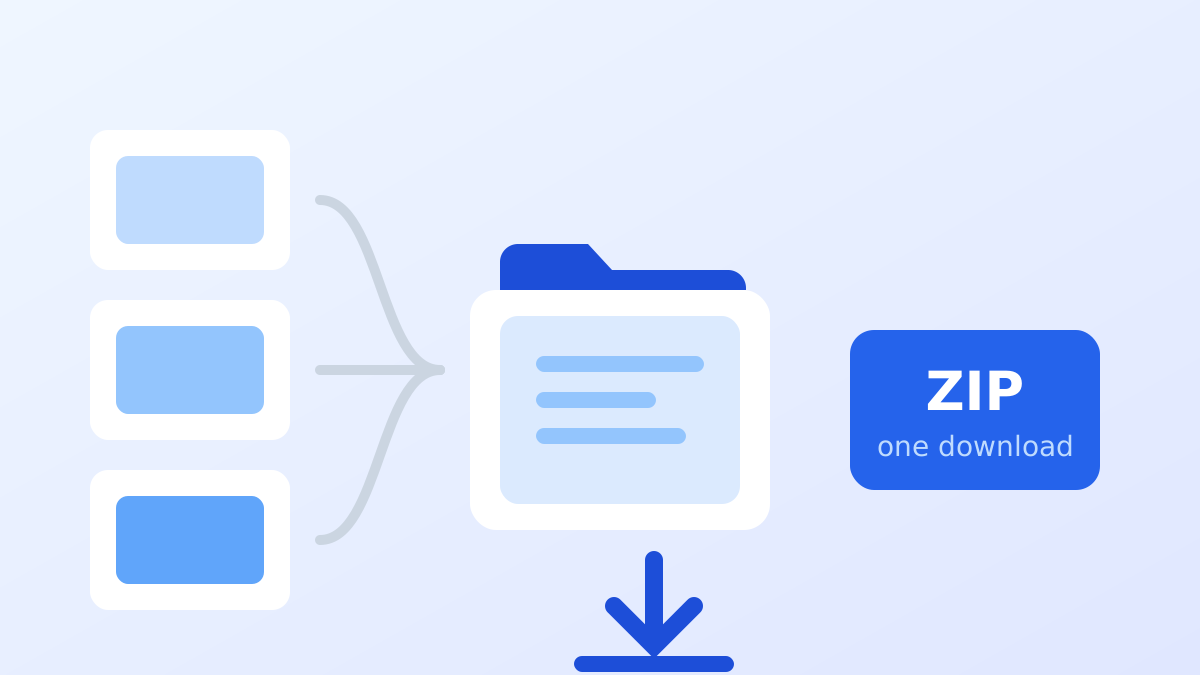
- Convert, then download the results individually or as a single ZIP archive.
For a checkout page, a blog post or a landing page’s hero group, that is usually all you need.
Converting a large library from the command line
Once you are dealing with hundreds of files, script it. With cwebp from the WebP tools:
for file in ./images/*.{jpg,png}; do
  cwebp -q 80 "$file" -o "./webp/$(basename "${file%.*}").webp"
done
Then compare total sizes before and after:
du -sh ./images ./webpIf the saving is smaller than you expected, the usual culprits are images that were already compressed or graphics that should have used lossless mode.
Checking the result
Whatever route you take, verify two things:
- Visual quality. Open a few converted files at full size, not thumbnails. Artefacts hide until you look closely.
- Correct markup. Serving WebP only helps if the page actually requests it, so check that your
srcsetor format negotiation is picking the new files.
Keeping it repeatable
Automate the conversion in your build or asset pipeline rather than doing it once by hand. Future image additions then get the same treatment automatically, and the “do we compress before or after export?” question stops coming up in code review.
Summary
Use the browser converter for small batches and a script for large ones, always keep the originals, and measure the size difference so you know the settings are doing what you expect.